
How to Set Up Price Alerts on MT5
Price alerts don't tell you when to trade, only that price hit a level you set. Here's how to set them up in MT5 without staring at charts all day.
By LTI BLOG Team
How to Set Up Price Alerts on MT5
Setting up a price alert in MT5 usually takes less than a minute. Open the Alerts tab in the Terminal window, create a new alert, choose the instrument and the price level you care about, then pick how you want to be told when it triggers. The whole point is that you don't have to watch the chart to know it happened, though the alert itself only tells you where price is, not what to do about it.
Key Takeaways: • Alerts live in the Terminal's Alerts tab (View > Toolbox), reached by right clicking and selecting Create • You set the instrument, the condition (price rising above or falling below a level, or a specific time), and the exact price • MT5 checks alert conditions against live price ticks inside the terminal itself, so the platform has to be open and connected for an alert to fire at all • Notification options include a popup, a sound, an email, or a mobile push message, and each one needs its own setup before it will actually work • An alert tells you price reached a level. It doesn't tell you what to do about it, and it won't place a trade for you unless you've built a separate automated action
Risk disclosure: Trading in foreign exchange (forex), contracts for difference (CFDs), and other leveraged financial instruments involves a high degree of risk and may not be appropriate for all investors. You should only trade with funds that you can afford to lose without adversely affecting your financial position.
How MT5 Price Alerts Actually Work
MT5's price alerts are a feature of the terminal application itself, not a service running on a remote server. Every time a new price tick arrives for the instrument you're watching, the terminal checks that tick against the condition you set. If the condition is met, it fires the notification you configured. If it isn't, nothing happens and MT5 waits for the next tick.
That local mechanism is worth understanding because it defines what an alert can and cannot do. The terminal has to be running, logged into your account, and receiving a live price stream for any check to happen at all. Close MT5, lose your internet connection, or let your computer go to sleep, and the alert simply stops being evaluated. It doesn't queue up and fire retroactively once you reconnect. It just wasn't checking while you were offline.
Opening the Alerts Tab in the Terminal
The Alerts tab sits inside the Terminal window at the bottom of the MT5 desktop platform, alongside Trade, History, and Journal. If you don't see it, go to the View menu and select Toolbox, which brings the whole panel back into view.
Once you're in the Alerts tab, right click anywhere inside it and choose Create. That opens a small dialog where you fill in the details of the alert itself. Nothing here is hidden behind a submenu or an obscure setting. It's the standard route MT5 expects you to use.
[SCREENSHOT: The MT5 Terminal window with the Alerts tab open and the right click context menu showing the Create option]
Filling In the Instrument, Condition, and Price
The alert dialog asks for a symbol, a condition, and a value. You'll pick the instrument from a dropdown, then choose whether you want the alert to fire when price rises above your level, falls below it, or reaches a specific time.
The price field is where you type the exact level you're watching, generally based on the bid price by default, though some conditions let you reference the ask price or the last traded price instead. An expiration field lets you set a date so the alert doesn't sit active indefinitely if the level never gets reached, and a separate "Once" checkbox controls whether the alert deletes or deactivates itself the first time it triggers, rather than staying active and firing again every time price crosses back over the same level.
It helps to give the alert a short comment or note, since MT5 shows this text in the popup or message when it triggers. A blank alert that just says "triggered" isn't much use if you've set a dozen of them across different pairs.
Setting an Alert Directly From a Chart Line
Some traders prefer to work from the chart rather than the Alerts tab. You can draw a horizontal line at the level you're watching using the Insert menu or the line tool on the toolbar, then double click the line to open its properties.
In most builds of MT5, the line properties window includes an option to enable an alert tied to that specific price, though the exact wording and placement can vary slightly between platform versions. If your version doesn't offer this directly, you can note the price from the line and enter it manually into the Alerts tab instead.
[SCREENSHOT: A MetaTrader 5 chart showing a horizontal price line with its properties dialog open and the alert option visible]
Choosing How You Want to Be Notified
MT5 offers several ways to flag a triggered alert, and it's worth setting up more than one if you won't be sitting at your desk when it fires. Each method needs its own setup before it will actually work, which is where most missed alerts come from.
Popup and Sound
A popup message and a sound are the defaults, and both work fine if you're near the platform when the level gets hit. You can choose the sound file MT5 plays, or turn it off if a silent popup is enough.
Setting Up Mobile Push Notifications
For anything you might miss while away from your screen, push notifications to your phone are generally the more reliable option, since they reach you regardless of whether the desktop terminal is in view.
Getting them working takes two steps. First, install the MT5 mobile app and sign in with your MQL5.community account, the same account tied to your MetaQuotes ID. Second, on the desktop terminal, go to Tools > Options > Notifications, enter that MetaQuotes ID, and send a test notification to confirm the link is working before relying on it. Both the desktop terminal and the phone need an active internet connection at the moment the alert fires. If either one is offline, the notification won't arrive.
If notifications still aren't arriving after checking all of this, LTI's client support team can help track down whether it's a pairing issue on the MetaQuotes ID or something on the phone itself.
[SCREENSHOT: The desktop MT5 Options dialog with the Notifications tab open, the MetaQuotes ID field filled in, and the Test button visible]
Email Alerts
Email alerts are also available, but they need SMTP details entered under the same Options menu before MT5 can send anything. Set this up once and it applies to every alert you create afterward, not just the current one.
Why the Terminal Has to Stay Running
Because alerts are evaluated locally, the biggest practical limitation isn't MT5's alert feature itself, it's whatever keeps your desktop terminal running. A laptop that goes to sleep overnight, a home internet connection that drops for ten minutes, or simply closing MT5 to save memory all have the same effect: the alert stops being checked for as long as the terminal is offline.
Traders who want alerts, or any other terminal dependent feature, available around the clock generally move their terminal to a VPS instead of running it from a home computer. A VPS keeps MT5 logged in and connected continuously, so an alert set at nine at night still gets evaluated if the level is hit at three in the morning. See LTI's VPS hosting for what that setup looks like if uptime is the part of this you're trying to solve.
What a Triggered Alert Actually Tells You
An alert firing means one thing: price reached the level you chose. It doesn't mean the market is about to reverse, break out, or do anything predictable next. You set that level for a reason, presumably tied to your own analysis, and the alert's only job is to save you from watching the chart until that reason becomes relevant again.
Treating an alert as a signal to act, rather than a prompt to go and check the chart properly, tends to lead to rushed decisions. The alert did its job the moment it told you where price is. What you do next is a separate question that needs its own thinking, not an automatic reaction.
Alerts vs an Automated Response
A standard MT5 alert only sends a notification. Nothing about the alert itself places an order, adjusts a position, or takes any action in your account. If you want price reaching a level to trigger an actual response, an order, a partial close, a hedge, that requires a separate automated tool built for that purpose, typically an Expert Advisor running rules you've coded or configured in advance.
That's a meaningfully different feature from the Alerts tab, both in what it does and in the responsibility it carries. An alert interrupts you so you can look and decide. An automated rule acts on your behalf according to logic you set up beforehand, which is why it deserves more testing and more caution before you rely on it. LTI's trading automation page covers what that kind of setup involves if a simple notification isn't enough for what you're trying to do.
Some traders take a middle path and connect an AI assistant to their MT5 account through MCP so it can read positions, history, and prices, and summarize what changed instead of just sending a single alert. That's still a read first setup: the assistant surfaces what happened and you decide what, if anything, to do about it, the same division of labor as a standard alert, just with more context attached. How to Enable Native MCP in MetaTrader 5 covers that setup if you want a look at the wider option. LTI's MetaTrader 5 MCP page shows what the assistant can read once it's connected.
Common Mistakes That Make Alerts Less Useful
Setting too many alerts across too many instruments is the most common one. If your Alerts tab fills up with triggers you no longer remember the reason for, you'll end up ignoring the ones that actually matter.
Forgetting to set an expiration is another. An alert with no expiration can sit dormant for months and then fire at a moment you weren't expecting, on a level you set for reasons that no longer apply.
Mixing up broker server time and your own local time trips up more traders than you'd expect, especially with a time based condition. MT5 shows timestamps in the trading server's time zone, not necessarily the one on your phone or computer, so an alert meant for your local market open can end up configured for a very different hour.
It's also easy to assume push notifications are working when they aren't. Phone settings, app permissions, and a live internet connection all need to line up, so it's worth testing a notification method once before relying on it for anything time sensitive.
Where to Find More on the MT5 Platform
Price alerts are one small piece of what MT5 offers as a platform. The broader feature set, from charting tools to order types, is covered on the MT5 platform page at London Trading Index. That's the place to look if you're still deciding whether MT5 fits how you plan to trade.
Alerts can tell you exactly when a price level is reached, but they can't tell you whether that level still makes sense by the time it triggers. That judgment call stays with you, which is really the point of setting the alert in the first place.
Frequently Asked Questions
Do MT5 price alerts work when the platform is closed?
No. Desktop alerts only trigger while the MT5 terminal is running and connected. If you close the platform or your computer goes to sleep, the alert won't fire until you reopen it and a qualifying tick arrives.
Can I set a price alert on my phone instead of the desktop platform?
Yes. The MT5 mobile app lets you create and manage alerts directly, and they trigger as long as the app has a connection, though push notifications still need to be enabled in settings first.
Will a price alert automatically place a trade for me?
No. A standard alert only sends a notification. If you want an automated action at a price level, that requires a separate Expert Advisor or trading script, which is a different feature from the basic Alerts tab. See trading automation for what that setup involves.
What happens to my alerts if my computer restarts or loses power?
Alerts saved in the Alerts tab persist and reload the next time MT5 starts, but they aren't checked at all during the time the terminal was offline. If missed alerts during downtime are a real risk for how you trade, running MT5 on a VPS keeps the terminal, and the alerts inside it, online continuously.
Next Steps
Setting up the alert itself takes a minute. Deciding what level actually matters enough to alert on, and what you're going to do once it fires, is the part worth spending real time on. Start with a handful of levels you'd genuinely act on rather than every level you can think of, and confirm your notification method actually works before you need it to.
If you want to test this on a live MT5 setup, you can open an account with London Trading Index and try it on a demo before setting alerts on anything live.
*This article is general information about CFDs, leveraged products and instruments, and trading. It is not investment advice, a recommendation, or an offer to trade, and it does not take account of your objectives, financial situation or needs. Refer to the footer for the full disclaimer, terms and policies.
Related Articles
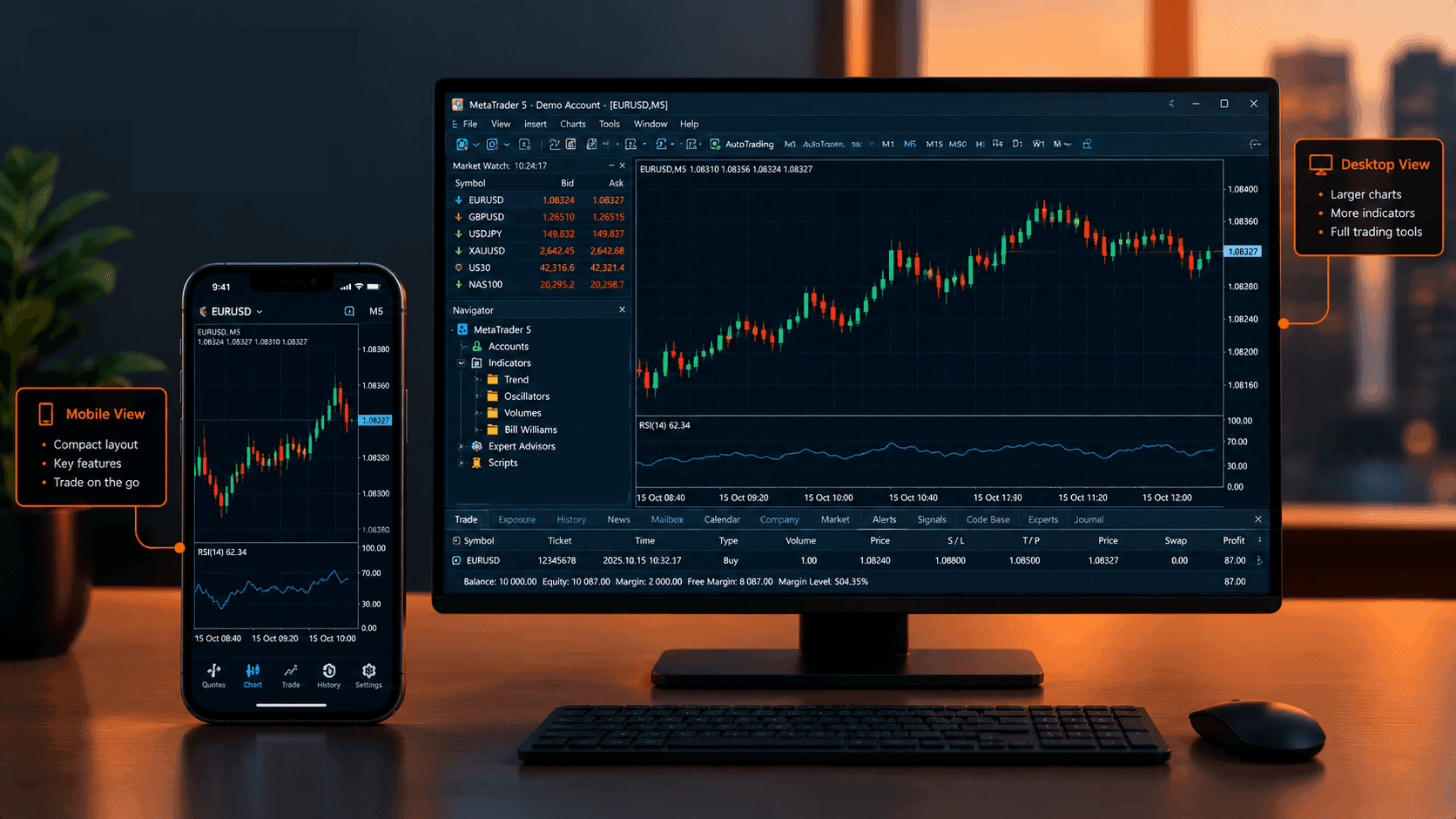
Mobile vs. Desktop MT5: Does the Platform You Trade On Matter?
Mobile and desktop MT5 show the same prices and execute the same trades. Here's how each affects your discipline and the decisions you make.
Read Article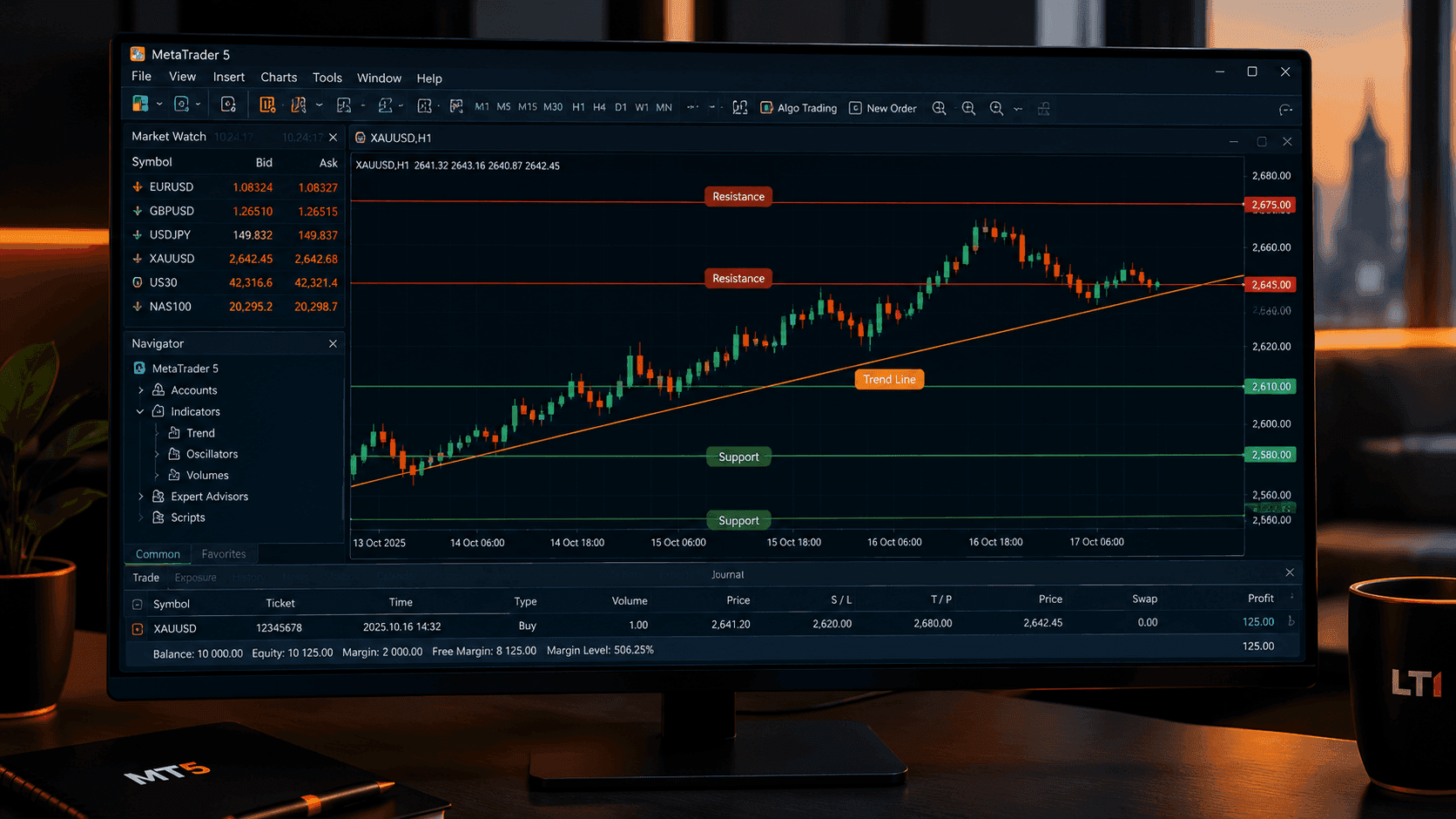
How to Read an MT5 Price Chart Without the Noise
A cluttered MT5 chart confuses more than it clarifies. Here's how to pick a chart type, timeframe, and reference lines without overloading the screen.
Read Article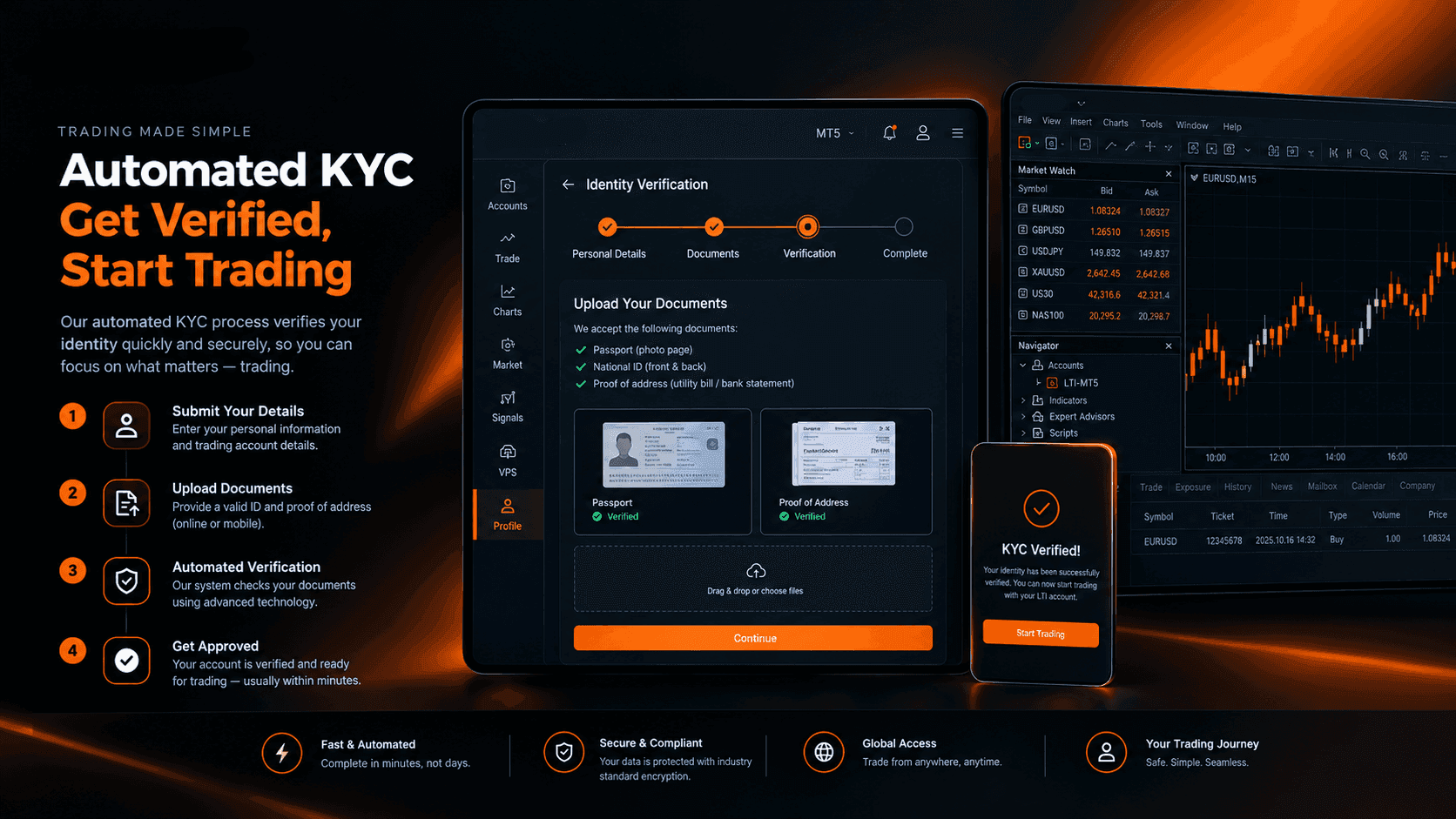
How Automated KYC Verification Actually Works at LTI
KYC verification is required before you can trade with LTI, not optional. Here's how the automated process works and how fast it can be.
Read ArticleCreate Your Account
Account opening happens in the client area, and takes a couple of minutes.
*Opening an account finishes in the secure client area, where these details carry across. Already registered? Sign in, or talk to us first.
CFDs are complex instruments and come with a high risk of losing money rapidly due to leverage. 73% of retail investor accounts lose money when trading CFDs. You should consider whether you can afford to take the high risk of losing your money.