
How to Enable Native MCP in MetaTrader 5 (Build 6060+): A Step by Step Walkthrough
MetaQuotes built MCP directly into MT5's Tools > Options menu from build 6060. Here's exactly how to turn it on and connect an AI assistant safely.
By LTI BLOG Team
How to Enable Native MCP in MetaTrader 5 (Build 6060+): A Step by Step Walkthrough
If you've searched for "MT5 MCP," you've probably landed on a GitHub repo: a community built Python bridge that runs alongside the terminal and talks to Claude or ChatGPT over stdin and stdout. Those work, and plenty of traders use them. But they're not what MetaQuotes shipped.
Starting with build 6060, MetaTrader 5 has native AI and MCP support built into the terminal itself. MetaQuotes' own release notes confirm two things arrived together: a built in AI assistant, activated by signing in with your MQL5.community account, and support for external MCP clients, with the release notes specifically naming OpenAI Codex and Claude Code as tools that can connect to the terminal directly. This walkthrough is about that second path: connecting an external assistant like Claude Desktop or ChatGPT, not the built in MQL5.community assistant.
MetaQuotes' release notes confirm build 6060 shipped on July 23, 2026 and that external MCP support exists, but they don't publish the exact connection mechanics themselves. A few independent setup guides agree on the general shape of it: there's a dedicated MCP tab in Options where you copy out a bearer key, and the connection runs over a local address rather than the open network. None of them fully document the port or localhost binding beyond that, since MetaQuotes hasn't published the equivalent detail on their own. The walkthrough below follows that general flow. It's worth checking it still matches what you actually see in your own Options dialog.
- What it is: Native MCP (this article): A feature built into the MT5 terminal itself | Community MCP servers: A separate script you install and run alongside MT5
- Setup: Native MCP (this article): Toggle in Tools > Options > MCP, copy a bearer key | Community MCP servers: Install Python and dependencies, run a script, configure your AI client to launch it
- Connection: Native MCP (this article): Local HTTP address, restricted to your own machine by default | Community MCP servers: stdio (stdin and stdout), with no port and no network exposure at all
- Maintenance: Native MCP (this article): Updates with MT5 itself | Community MCP servers: You maintain the script separately from MT5 updates
- Official support: Native MCP (this article): Confirmed by MetaQuotes | Community MCP servers: Maintained by the community, not published by MetaQuotes
Key Takeaways: • Native MCP requires MT5 build 6060 or later. Check via Help > About, and update via Help > Check for Updates if you're behind. • You enable it in Tools > Options > MCP, then copy a bearer key and note the local port it binds to. • By default, the server only accepts connections from `127.0.0.1`, so nothing outside your own machine can reach it. • This is different from the community Python MCP servers you'll find online, which use a separate stdio based connection method with no port or key at all. • Enabling MCP does not hand control of your account to an AI assistant. You're exposing data and tools for it to read and use, not authorizing it to trade unsupervised.
Native MCP vs. the Community Servers You've Probably Seen
Most of what currently ranks for "MetaTrader MCP server" is a third party project: community built Python bridges that run as a local script and talk to an AI client over stdin and stdout, with no HTTP port or authentication token involved at all. They're a legitimate option, particularly if you want to customize exactly which functions get exposed.
The native path is different. It's a feature of the terminal itself, and MetaQuotes' own release notes confirm external MCP clients can connect to it directly, with no separate script and no Python environment to install or maintain. There's nothing to keep updated separately from MT5, which is the whole reason this walkthrough exists.
For the bigger picture of what a connected assistant can actually do with your account, see MetaTrader 5 Now Talks to AI Assistants.
Before You Start
Three things to check first:
- 1.Confirm your build number. Open MT5, go to Help > About. If the build shown is below 6060, go to Help > Check for Updates and update before continuing. The MCP tab won't appear on older builds.
- 2.Use a demo account for your first pass. You're about to expose your trading terminal to a new connection type. Test the whole flow on a demo account first: enable the server, connect an assistant, and run a few read only queries before doing any of this on a live account.
- 3.Decide what you actually want an assistant to do. Read your trade history? Check open positions? Place orders? The scope you grant later should match a real, specific use case, not "everything, just in case."
[SCREENSHOT: MT5's Help > About dialog showing the build number field]
Step by Step: Enabling MCP in MT5
- 1.Open Tools > Options. From the main MT5 menu bar, go to Tools > Options.
- 2.Find the MCP tab. On build 6060+, a dedicated MCP tab appears in the Options panel alongside Server, Charts, and the others.
- 3.Enable the server. Toggle the MCP server on. The panel will show a local port number it's bound to. You don't need to change this unless something else is already running on that port.
- 4.Copy the bearer key, and don't retype it. The dialog generates a bearer key you'll paste into your AI assistant's configuration. It's case sensitive, so use the Copy button rather than typing it out by hand. A single mistyped character will break the connection.
- 5.Note the full connection address. It follows the pattern
http://127.0.0.1:[your port]/mcp. You'll need the exact port number for the next step.
[SCREENSHOT: The Options dialog's MCP tab, with the enable toggle switched on, the port field visible, and the "Copy" button next to the bearer key highlighted]
Connecting an AI Assistant to the Server You Just Enabled
Once the server's running, any MCP compatible assistant can connect to it using the address and bearer key from step 5. The exact configuration step differs by assistant, since Claude Desktop, ChatGPT, and Cursor each expect the connection details in a slightly different place.
See Connect Claude to MT5: Full Setup Guide with Working Prompts for the client side configuration and a ready to use prompt library.
That guide covers the client side in full. What matters here is what you're granting access to the moment that connection succeeds, and that's the next section.
Security Defaults You Should Know Before Going Further
Two things are worth understanding before you connect anything. One is confirmed directly by MetaQuotes, and the other comes from setup documentation for the feature.
- MetaQuotes builds in explicit permission controls. Per the official release notes: "You can explicitly allow or prohibit AI-initiated trading operations, or require manual confirmation. In addition, separate settings control the AI's access to network requests and command line operations." Check these settings before you connect anything. They're the actual switch between "reads my data" and "can place trades."
- Localhost only, by default, for the MCP endpoint itself. Setup documentation for the feature indicates the server only accepts connections from
127.0.0.1, meaning your own machine. Nothing on your network, let alone the open internet, can reach it unless you deliberately change that binding.
Access and action are two different questions. Enabling MCP exposes data (market prices, your account state, trade history) and, depending on the permission settings above, potentially tools like order placement. Whether an assistant is read only or can act is something you configure explicitly. It isn't a side effect of turning MCP on.
The assistant reads what you've exposed and can suggest, or if you've explicitly allowed it, act within the scope you've granted. You're the one deciding what that scope is, and you're the one deciding whether to act on anything it surfaces.
Read MCP Trading Security: Read Only Mode, Order Caps and Kill Switches Explained before deciding what to grant.
Risk disclosure: Trading in foreign exchange (forex), contracts for difference (CFDs), and other leveraged financial instruments involves a high degree of risk and may not be appropriate for all investors. You should only trade with funds that you can afford to lose without adversely affecting your financial position. No AI tool, including any assistant connected through MCP, is a guaranteed forex trader or capable of trading independently of you.
Common Setup Issues
The MCP tab doesn't appear in Options. You're almost certainly on a build below 6060. Check Help > About and update.
The connection fails after I paste the bearer key. The key is case sensitive. If you typed it instead of using Copy, retype it by copying directly from the Options dialog again.
It connected, then stopped working. This is usually a port conflict, or the terminal restarting after an update, which can regenerate the key. Open Options > MCP again and confirm the port and key still match what your assistant's configuration has.
See LTI's client support team for the full list of setup errors and fixes.
FAQ
Do I need MT4 for this?
No. Native MCP is a build 6060+ MT5 feature. MT4 doesn't have an equivalent, and MetaQuotes' current platform investment is in MT5.
Is it safe to just leave MCP enabled all the time?
That depends entirely on what you've granted access to and what's connected to it, not on the toggle itself. Read the security section above before deciding, and treat "always on" as a deliberate choice rather than a default.
Can I run this on a VPS instead of my desktop?
Yes. If you want an AI assistant available around the clock rather than only while your desktop is on, that's exactly the setup you want. MT5 needs to be running for MCP to be reachable at all.
See Why Your AI Trading Agent Needs a VPS for what actually changes when the terminal runs on a VPS instead of your desktop, and LTI's VPS page for setting one up.
Next Steps
Enabling the server is five minutes of clicking. What you connect to it, and what you let it do, is the part worth thinking through properly. Start with the security section above before you go further than a demo account.
Ready to try this on your own setup? [Download MT5 from LTI] and test the full flow on a demo account before connecting anything to a live one.
*This article is general information about CFDs, leveraged products and instruments, and trading. It is not investment advice, a recommendation, or an offer to trade, and it does not take account of your objectives, financial situation or needs. Refer to the footer for the full disclaimer, terms and policies.
Related Articles
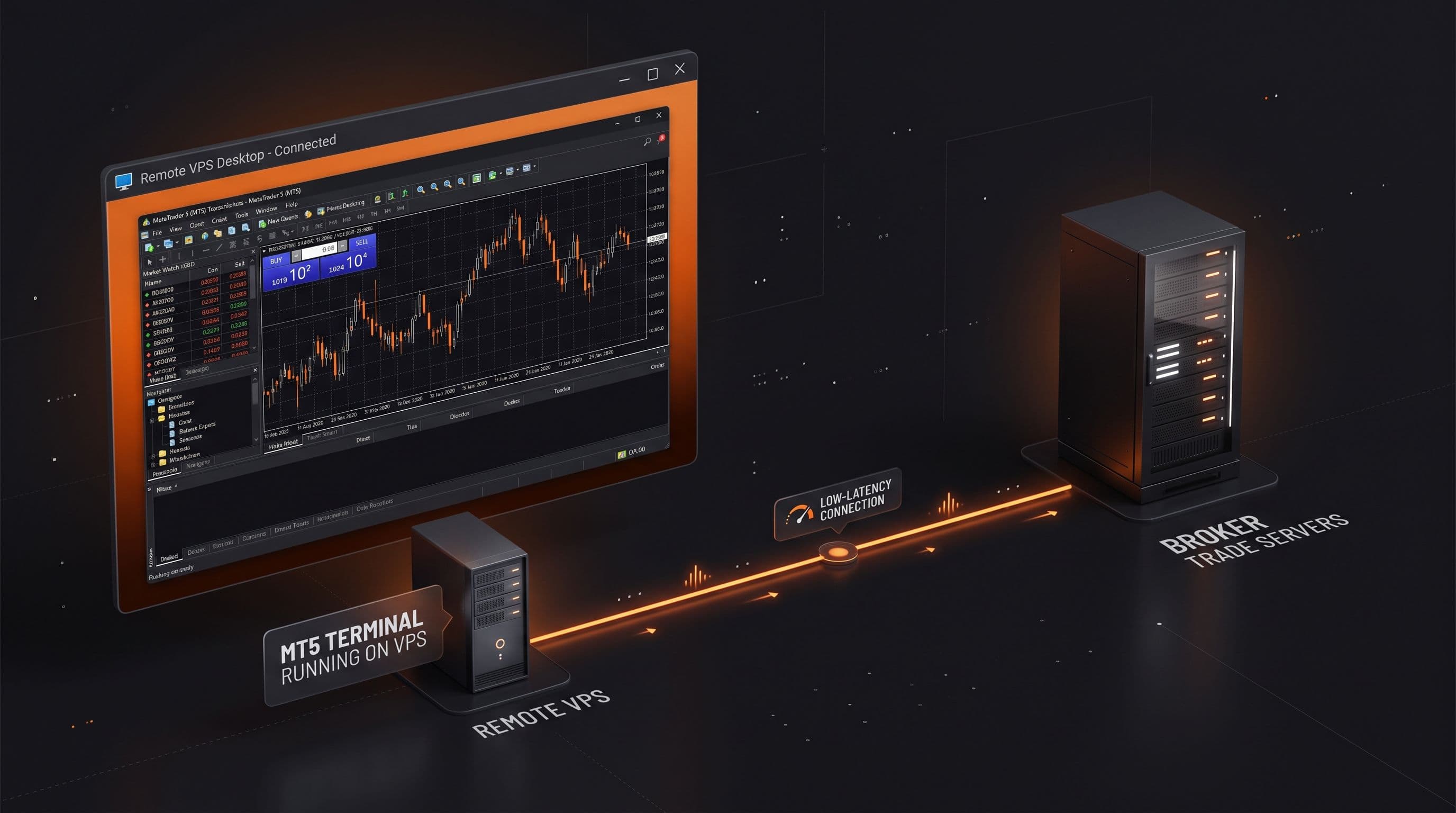
Why Your AI Trading Agent Needs a VPS (And How to Set One Up)
MCP only works while MT5 is open and signed in. Here is why an AI trading agent needs an always on terminal, and what to look for in a VPS: uptime, resources, and latency.
Read Article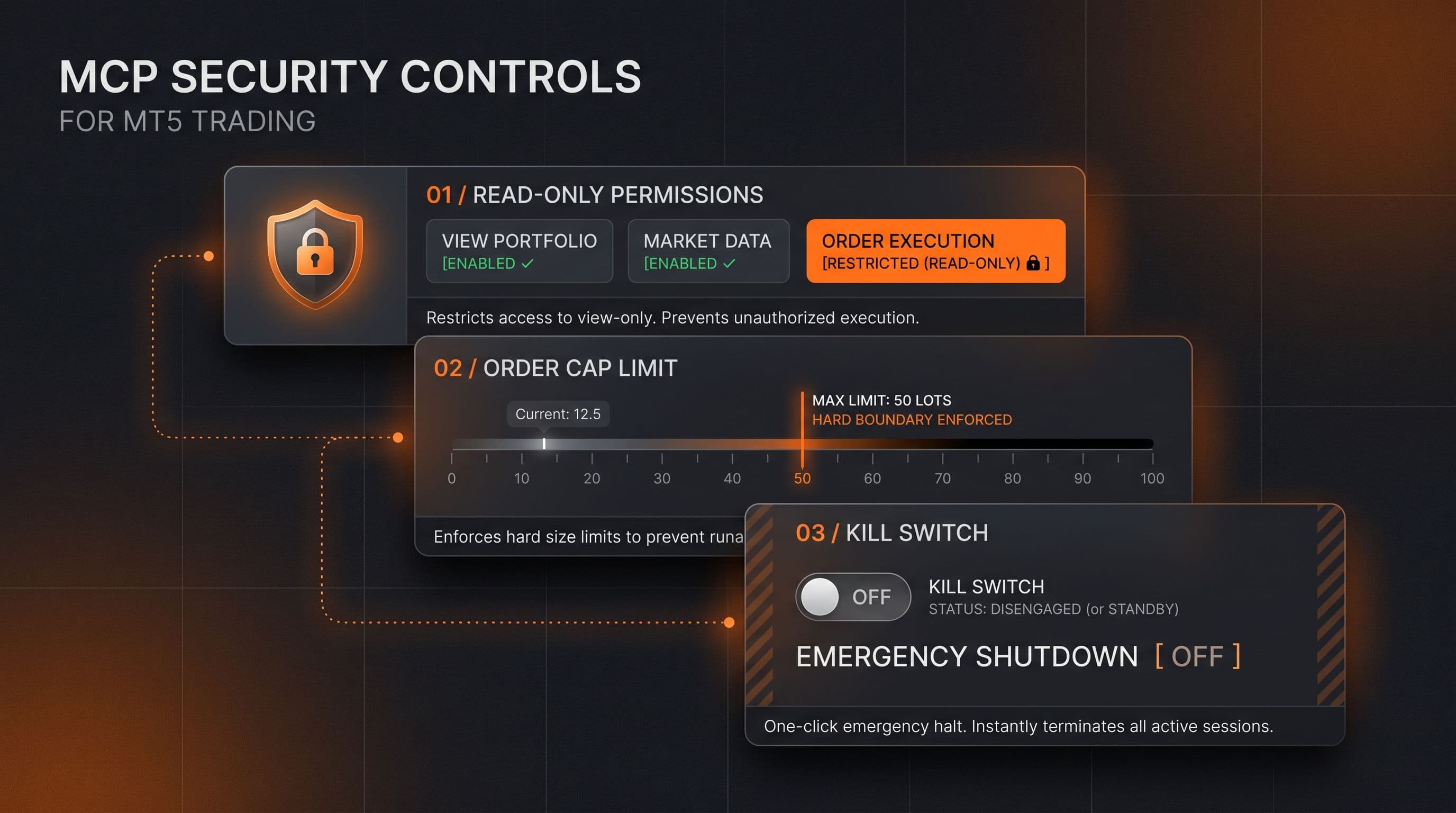
MCP Trading Security: Read Only Mode, Order Caps and Kill Switches Explained
Read only access, order caps and a kill switch are the three checkable controls behind any MCP connected trading assistant. Here's what each one actually does.
Read Article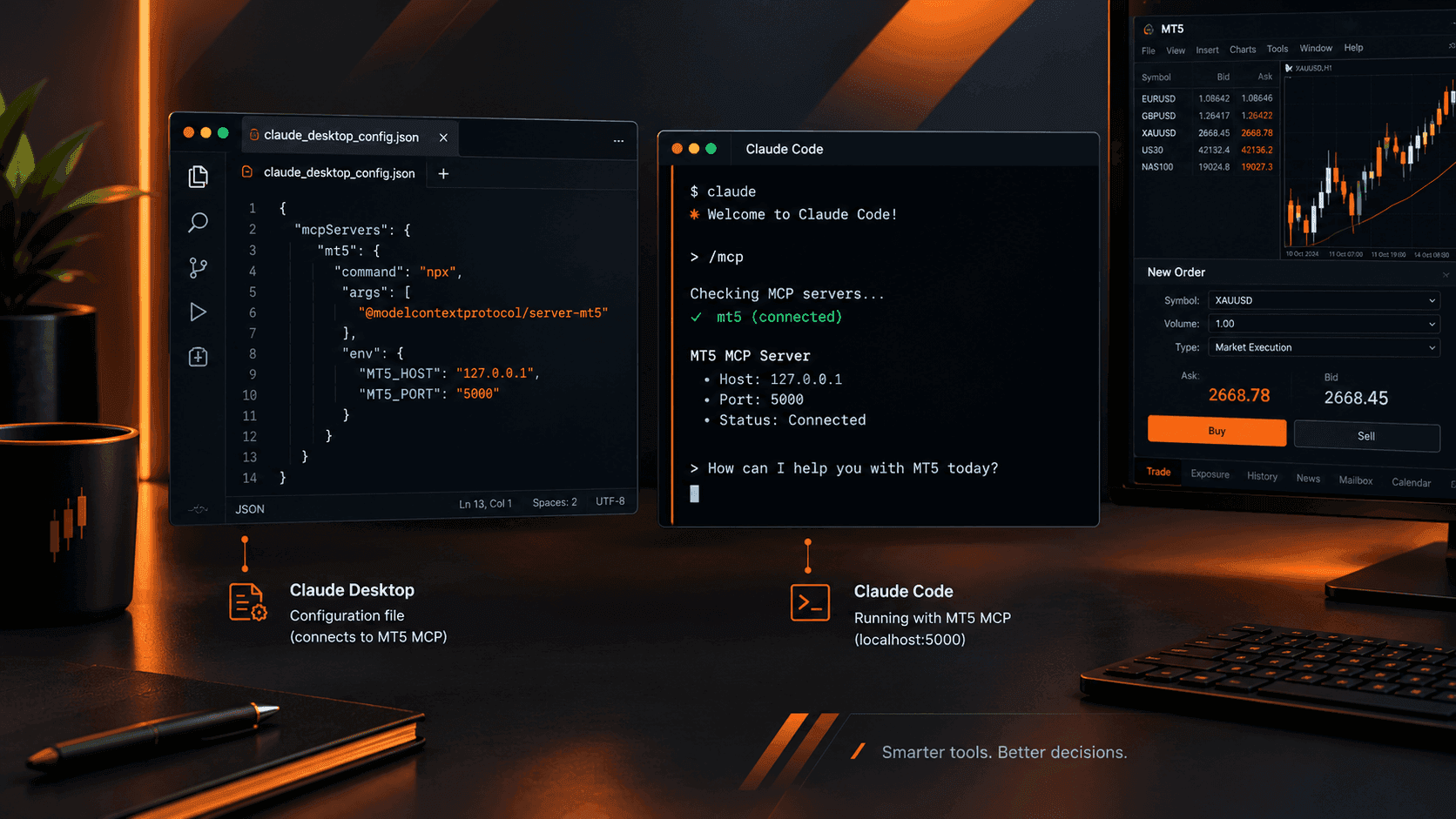
Connect Claude to MT5: Full Setup Guide with Working Prompts
MT5's native MCP server is enabled and waiting. Here's exactly how to point Claude Desktop or Claude Code at it, plus a working prompt library you'll actually bookmark.
Read ArticleCreate Your Account
Account opening happens in the client area, and takes a couple of minutes.
*Opening an account finishes in the secure client area, where these details carry across. Already registered? Sign in, or talk to us first.
CFDs are complex instruments and come with a high risk of losing money rapidly due to leverage. 73% of retail investor accounts lose money when trading CFDs. You should consider whether you can afford to take the high risk of losing your money.