
Connect Claude to MT5: Full Setup Guide with Working Prompts
MT5's native MCP server is enabled and waiting. Here's exactly how to point Claude Desktop or Claude Code at it, plus a working prompt library you'll actually bookmark.
By LTI BLOG Team
Connect Claude to MT5: Full Setup Guide with Working Prompts
If you haven't turned on MT5's native MCP server yet, start with How to Enable Native MCP in MetaTrader 5 first. That walkthrough covers the MT5 side: updating to build 6060 or later, opening the MCP tab in Options, and copying out the local port and bearer key you'll need in a minute. This article assumes you've already done that and picks up exactly where it leaves off, on the Claude side of the connection.
Most guides on this topic stop at "it connects" and leave the rest to you. This one doesn't: below is the actual configuration step for Claude Desktop and Claude Code, plus a prompt library worth bookmarking rather than rewriting from scratch next week.
Have three things open from the prerequisite article before you continue: the local address (http://127.0.0.1:PORT/mcp), the port number, and the bearer key from the MCP tab.
Key Takeaways: • MT5's native MCP server needs to be enabled first. See How to Enable Native MCP in MetaTrader 5 if you haven't done that yet. • Claude Desktop connects through its configuration file; Claude Code connects through a single terminal command. • MetaQuotes' own release notes name Claude Code specifically as a supported external client, alongside OpenAI Codex, so this isn't an unofficial workaround. • A working connection gives Claude read access to your account data. It doesn't hand over control of your trades, and the prompt library below is built around that distinction.
Claude Desktop or Claude Code: Which One Do You Want?
They connect to the same MT5 endpoint and can run the same prompts. The difference is where you work.
- What it is: Claude Desktop: A desktop chat application | Claude Code: A terminal based tool
- Best for: Claude Desktop: A chat window open alongside charts | Claude Code: Traders who already script, or run this from a VPS
- Setup method: Claude Desktop: Edit a configuration file, restart the app | Claude Code: Run a single command
- Named by MetaQuotes: Claude Desktop: Not specifically named | Claude Code: Named specifically, with OpenAI Codex
Neither is more "official." Both use the same address and bearer key from the prerequisite article. If you're unsure, start with Claude Desktop, the simpler first pass. Nothing below is wasted if you add Claude Code later; the two can run side by side against the same MT5 terminal.
Before You Start
- 1.MT5's MCP server is enabled and running. If Tools > Options > MCP shows the toggle off, go back and finish the prerequisite article first.
- 2.You have the port, the address, and the bearer key copied somewhere. Not retyped, copied. The key is case sensitive.
- 3.You're testing on a demo account. The prompt library below is built around read only questions, but confirm the connection on a demo account before you point any of this at a live one.
Setting Up Claude Desktop
- 1.Locate the configuration file. Claude Desktop keeps its connection settings in a single file, tucked into the Claude application folder in your user profile on Windows or a Mac. If it doesn't exist yet, Claude Desktop's own settings menu has an option to open or create it.
- 2.Open it in a plain text editor. Notepad, TextEdit, or any code editor works. Avoid a word processor, which can add formatting the file won't read correctly.
- 3.Add an entry for MT5. The file lists each connected server by name. Give MT5 its own entry with the local address and the bearer key as an authorization header, roughly like this, with your own port and key dropped in:
`json { "mcpServers": { "mt5": { "url": "http://127.0.0.1:PORT/mcp", "headers": { "Authorization": "Bearer YOUR_BEARER_KEY" } } } } `
Claude Desktop's exact field names here have shifted slightly as the feature has matured, so treat this as the general shape rather than something to copy blind. If the settings menu offers a guided way to add a connection instead of editing the file directly, that walks you through the same three pieces of information.
- 1.Save the file, then fully quit Claude Desktop and reopen it. Closing the window isn't enough; the app needs to restart to read the file again.
- 2.Confirm the connection. Open a new chat and ask something simple and read only, like "What's my account balance?" A real answer means it's working. If it says no such tool is available, double check the port and key, then see the troubleshooting section below.
[SCREENSHOT: Claude Desktop's settings menu showing the MT5 connection listed as active, alongside the configuration file open in a text editor with the mcpServers entry visible]
Setting Up Claude Code
This path suits traders who already work from a terminal, or who want an assistant available on a VPS rather than a desktop that has to stay open. It's also the path MetaQuotes' own release notes call out directly, naming Claude Code alongside OpenAI Codex as a supported external MCP client.
- 1.Open a terminal on the machine where Claude Code is installed. This can be your desktop or a VPS running MT5 around the clock.
- 2.Add the MT5 server with a single command. Claude Code has a built in command for adding an MCP connection without editing a file by hand. The general shape is:
` claude mcp add --transport http mt5 http://127.0.0.1:PORT/mcp --header "Authorization: Bearer YOUR_BEARER_KEY" `
Replace the port and key with your own values. Run claude mcp add --help first if you want to confirm the current flags for your installed version, since command line tools change their own syntax from time to time.
- 1.Verify the connection is listed. A command to list configured servers will show
mt5alongside anything else you've connected. - 2.Ask a test question. Start a session and ask for something simple, like your open positions or current balance, the same test used above for Claude Desktop.
Running this on a VPS suits anyone who wants the connection available even when their own desktop is off.
[SCREENSHOT: A terminal window showing the claude mcp add command being run, followed by a successful test query returning account data]
Common Setup Issues
Claude says it has no MT5 tool available. Usually a typo in the port, or a bearer key that was retyped instead of copied. Go back to MT5's Options > MCP tab and copy both again.
The configuration file won't save, or Claude Desktop won't start after editing it. Almost always a JSON syntax error, a missing comma or an extra bracket. A code editor with syntax highlighting will usually spot the mistake for you.
It worked yesterday and doesn't today. MT5 can regenerate the bearer key after a terminal restart or an update. Open Options > MCP again, copy the current key, and update your configuration to match.
Claude Code can't find the command. Confirm Claude Code itself is installed and up to date before troubleshooting the MT5 side specifically.
For the deeper mechanics of what MT5's MCP server exposes and why, MetaTrader 5 Now Talks to AI Assistants covers the bigger picture.
The Prompt Library
This is the part worth bookmarking. Every prompt below is read only by design: it asks Claude to summarize, calculate, or check something, never to place a trade or decide what to do next. That's a deliberate choice, not a limitation of the connection. Whether to act on anything below is still entirely yours.
Account snapshot
- "Summarize my current account balance, equity, and margin level."
- "List everything currently open on my account, grouped by symbol."
- "How much of my account is currently tied up in margin?"
Positions and orders
- "Show me my open positions and how long each one has been open."
- "List my pending orders and their trigger prices."
- "Which of my open positions is furthest from its stop loss right now?"
Market data checks
- "What's the current price and spread on [symbol]?"
- "Pull the last 20 candles on [symbol] on the 1 hour chart and summarize the range."
- "What's the average daily range on [symbol] over the last two weeks?"
History and journaling
- "Summarize my closed trades from the last 30 days: win rate, average size, and net result."
- "What was my longest losing streak in my trade history, and when did it happen?"
- "Group my last 50 trades by symbol and show which ones I trade most often."
Risk and exposure review
- "Am I currently exposed to more than one position on the same currency, and how much combined?"
- "What percentage of my account would I lose if every open position hit its stop loss?"
- "Compare my average position size this month against last month."
Once you're connected, Ask Your Account Anything goes deeper into this same idea, with a longer library organized by trading style and a few prompts built for specific review routines rather than one off questions.
The Assistant Reads, You Decide
Everything in the prompt library above works the same way: Claude reads data you've explicitly exposed and reports back on it. None of it is Claude deciding what you should trade next, even when a summary looks like it's pointing at an obvious conclusion. The strongest setup here isn't the one with the most automation; it's the one you can still explain, test, and stop at any point.
Whether an assistant can go beyond reading, to placing or modifying orders, is controlled separately through the permission settings covered in the prerequisite article. Connecting Claude to MT5 doesn't change those settings on its own. Read access and trading access are two different questions, worth answering separately rather than assuming one implies the other.
Risk disclosure: Trading in foreign exchange (forex), contracts for difference (CFDs), and other leveraged financial instruments involves a high degree of risk and may not be appropriate for all investors. You should only trade with funds that you can afford to lose without adversely affecting your financial position. No AI tool, including any assistant connected through MCP, is a guaranteed forex trader or capable of trading independently of you.
FAQ
Do I need both Claude Desktop and Claude Code?
No. Pick whichever fits how you already work. Claude Desktop suits a chat window alongside your charts; Claude Code suits a terminal based workflow or a VPS. You can also run both against the same MT5 terminal.
Can I use these prompts with ChatGPT instead of Claude?
The MCP connection itself isn't Claude specific, so a similarly connected assistant can often answer comparable questions. This article focuses on Claude Desktop and Claude Code, since the setup steps and command syntax differ by client.
Will Claude place trades if I ask it to?
Only if you've separately granted that permission in MT5's MCP settings, covered in the prerequisite article. By default, connecting Claude gives it access to read data. Whether it can also act is a distinct setting you choose, not something automatic.
What if I only want to try this without touching a live account?
That's the right way to start. Every prompt in the library above works identically on a demo account, and testing there first is the safer way to see what a connected assistant actually returns before deciding what, if anything, you want it doing near real funds.
Next Steps
The setup itself takes a few minutes once you have the port and bearer key in hand. What you ask it, and what you do with the answers, is the part that actually matters, and that's what the prompt library above is for.
Ready to try this yourself? Try it on an LTI demo account first: connect Claude, run a few prompts from the library above, and get a feel for what a connected assistant actually shows you before you consider anything beyond that.
*This article is general information about CFDs, leveraged products and instruments, and trading. It is not investment advice, a recommendation, or an offer to trade, and it does not take account of your objectives, financial situation or needs. Refer to the footer for the full disclaimer, terms and policies.
Related Articles
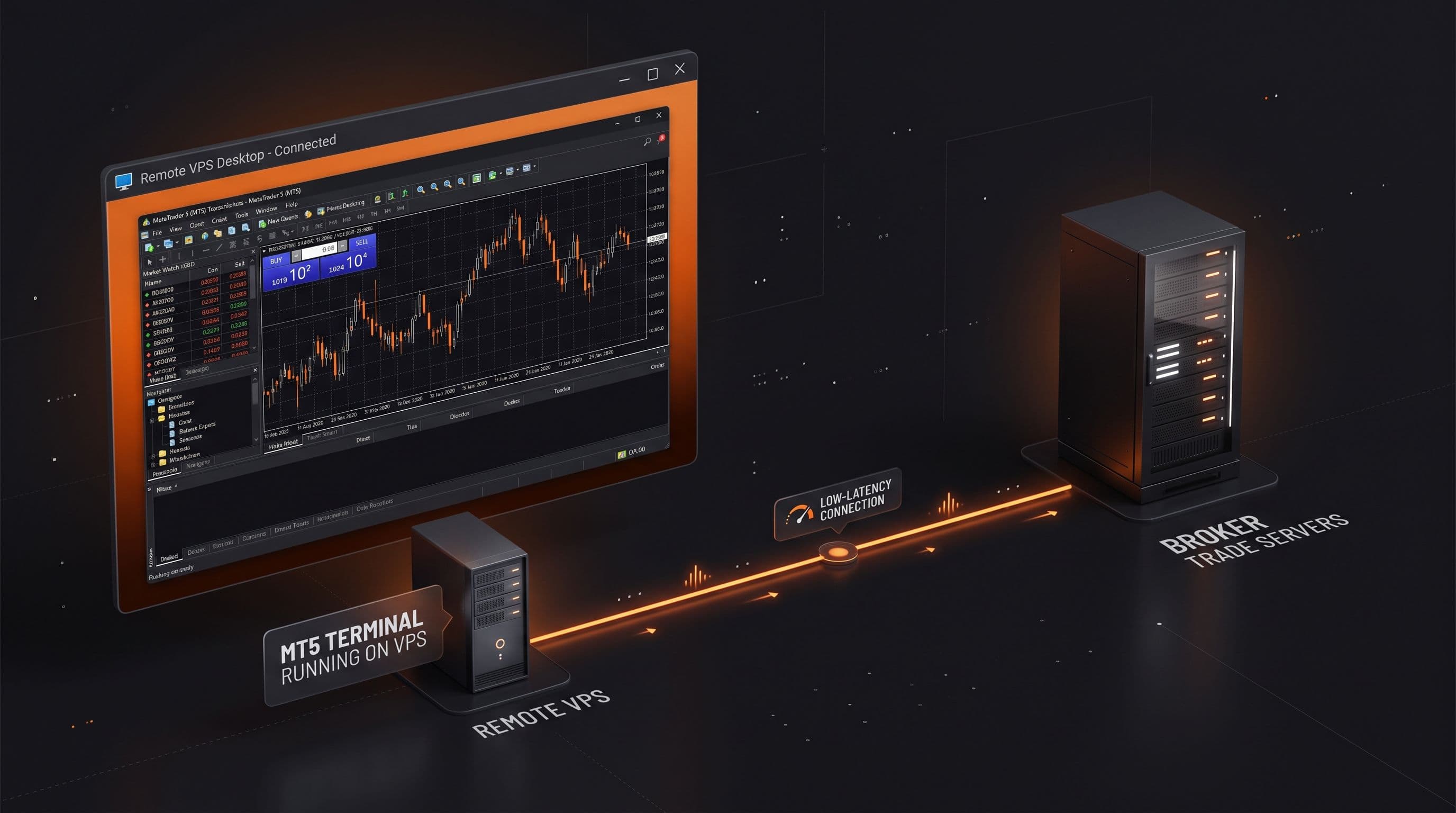
Why Your AI Trading Agent Needs a VPS (And How to Set One Up)
MCP only works while MT5 is open and signed in. Here is why an AI trading agent needs an always on terminal, and what to look for in a VPS: uptime, resources, and latency.
Read Article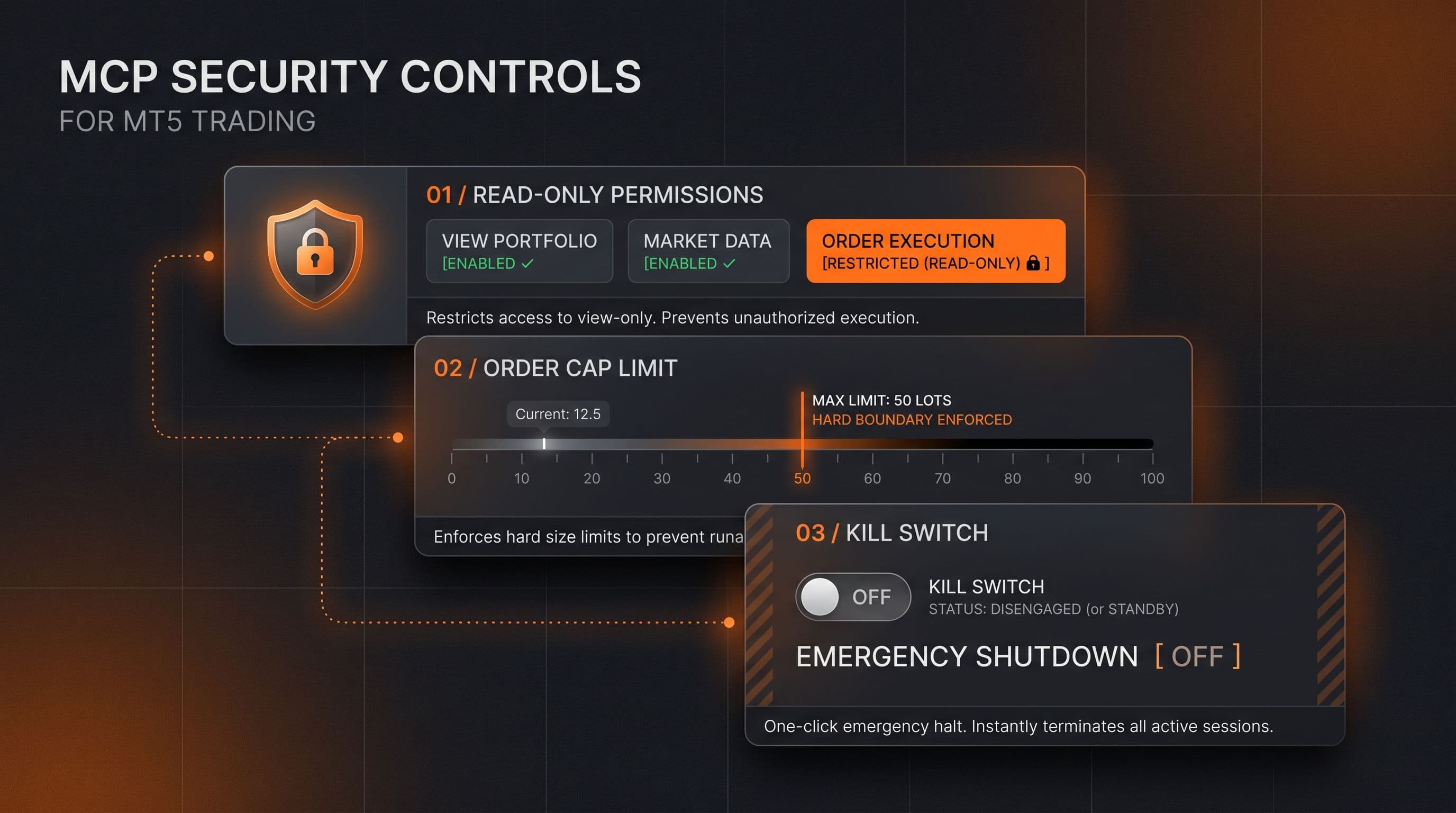
MCP Trading Security: Read Only Mode, Order Caps and Kill Switches Explained
Read only access, order caps and a kill switch are the three checkable controls behind any MCP connected trading assistant. Here's what each one actually does.
Read Article
How to Enable Native MCP in MetaTrader 5 (Build 6060+): A Step by Step Walkthrough
MetaQuotes built MCP directly into MT5's Tools > Options menu from build 6060. Here's exactly how to turn it on and connect an AI assistant safely.
Read ArticleCreate Your Account
Account opening happens in the client area, and takes a couple of minutes.
*Opening an account finishes in the secure client area, where these details carry across. Already registered? Sign in, or talk to us first.
CFDs are complex instruments and come with a high risk of losing money rapidly due to leverage. 73% of retail investor accounts lose money when trading CFDs. You should consider whether you can afford to take the high risk of losing your money.